
 Official 6E Club login
6E Club Login
Everything about getting into 6E Club: the normal sign-in, password recovery and each error message decoded.
The 6E Club login is about as simple as it gets — two boxes and a button. When it misbehaves, the cause is nearly always something small: a stray +91, a copy site, a stale cache. This page walks through the normal sign-in first and then every fix we’ve needed ourselves.
Signing in to 6E Club
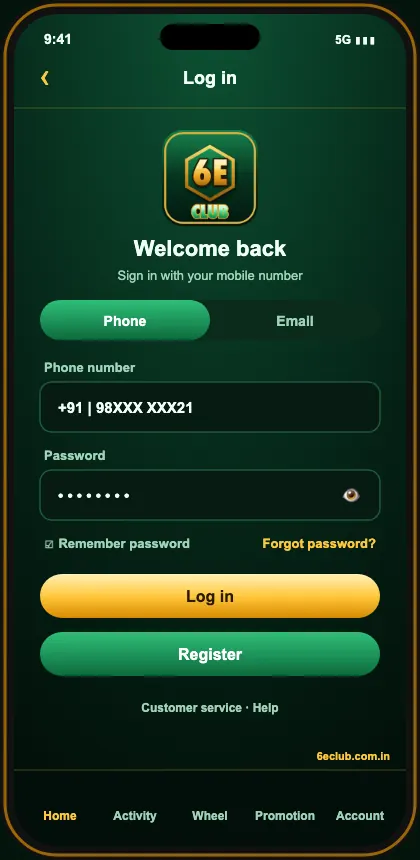
- Open the 6E Club login link or tap the installed app.
- Stay on the Phone tab.
- Type your mobile number — ten digits, nothing in front.
- Enter your password. The eye icon shows what you’ve typed.
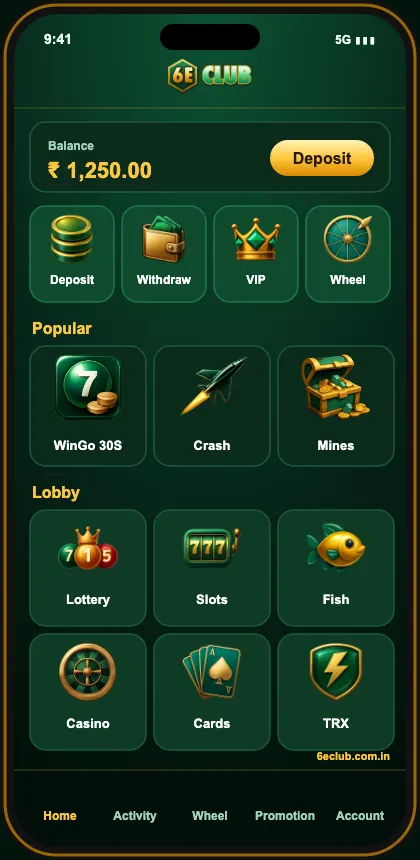
- Tap Log in. The lobby opens with your balance at the top.
First time in? Head to Activity and collect the registration part of the ₹999 signup bonus, then redeem gift code SGERIU37U393RHJF37YYHIROI3KHJR under Account → Gifts.
Forgotten your 6E Club password?
- On the login screen tap Forgot password.
- Enter the number you registered with.
- Tap Send and type the SMS OTP.
- Choose a new password, confirm it, and save.
- Log in with the new password.
The withdrawal password is a separate thing — change it under Account → Settings. More detail, including what to do if the SIM is lost, is on the forgot password page.
6E Club login errors and what fixes them
| “Account does not exist” | Ten digits only; or you’re on a copy site |
|---|---|
| “Incorrect password” | Check caps lock and keyboard language, then reset |
| Spinner never stops | Switch Wi-Fi ↔ mobile data, clear site cache |
| OTP never arrives | See the login problems checklist |
| Logged out repeatedly | Another device signed in — change your password |
| “Account restricted” | Message 6E Club customer care |
6E Club login on a computer
Any desktop browser will do — Chrome, Edge, Firefox or Safari. The layout stretches to a wider lobby, but the account, wallet and rewards are identical. On a shared or office machine, don’t let the browser save your password and always log out from the Account tab before walking away.
Should you let the app remember you?
On your own phone with a screen lock, yes — it saves typing and reduces the chance you’ll search for the site and land on a copy. On a phone that other people use, no. The few seconds of typing are worth it.
Keeping your 6E Club account yours
- Use a password you don’t use for email, UPI or social media.
- Set a different withdrawal password.
- Never read an OTP out to anyone.
- Open 6E Club only from the app or a bookmark — not from search results or chat links.
- Glance at Account → Login history now and then for devices you don’t recognise.
More 6E Club game screens
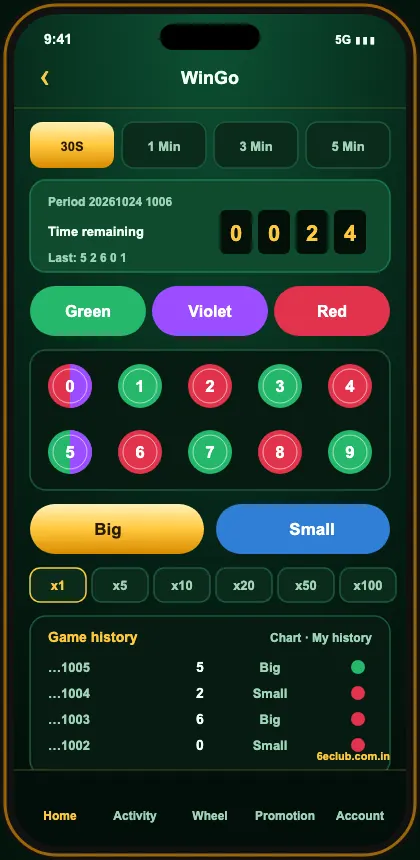
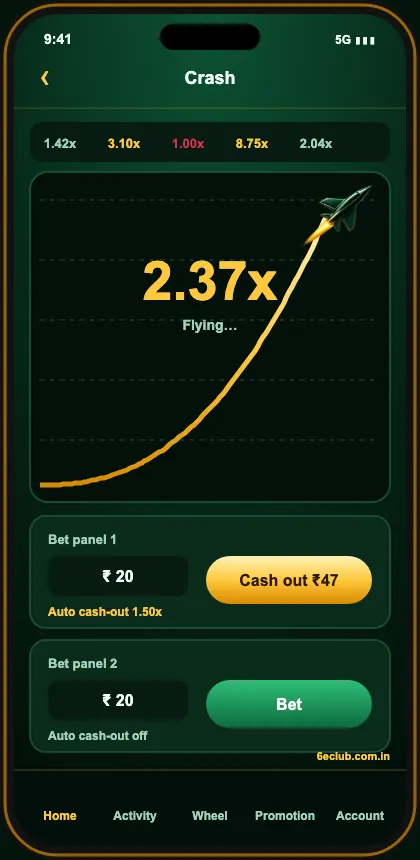
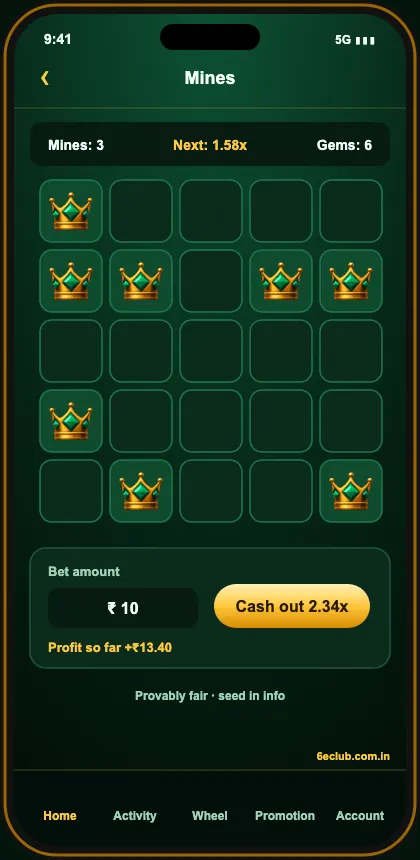
Haven’t got an account yet? Start from the 6E Club official site: the 6E Club register form takes a minute, the 6E Club login works on any phone, and the 6eclub app keeps you signed in.
New to the platform? The 6E Club homepage gives the full tour.
Questions players ask us
What do I need for the 6E Club login?
Only your registered mobile number and your password.
I forgot my password — what now?
Use Forgot password on the login screen. The full OTP reset is on the 6E Club forgot password page.
Why does it say the account doesn’t exist?
Usually the number was typed with +91 or a leading 0, or you’re on a copy site. Type ten digits on the real site, or register if you never did.
Can I log in on a laptop?
Yes. The same link works in Chrome, Edge, Firefox or Safari — see 6E Club online.
Why do I get logged out on my own?
Signing in on a second device ends the older session. Browsers that clear cookies on exit do the same.
Can two people share one account?
No. Accounts are personal, and shared logins are a common reason for frozen withdrawals.